
Managing financial records across multiple sales channels can become complex. Selling on Amazon, Shopify, or both means having to manually track orders, fees, taxes, and payouts. This is a surefire way to waste time and make mistakes.
Automated bookkeeping is one way to manage your financial records accurately and gain a clear and real-time view of your business through integrations of Amazon and Shopify with QuickBooks Online (QBO).
This guide is intended to show you integrations of Amazon and Shopify with QuickBooks Online, how to utilize those integrations, what tools are best, benefits of the integrations, and common mistakes to steer clear of.
Step-by-Step Guide to Integrating Amazon with QuickBooks Online
Step 1: Select an Integration Tool for Amazon-QuickBooks
Amazon Seller Central cannot directly integrate with QuickBooks Online. You will need a third-party connector like
- A2X
- Webgility
- Link My Books
- Connex
Consider the tool suitable for your transaction volume, inventory, and tax complexity.
Step 2: Integrate with Amazon Seller Central.
- Open your integration app.
- Give the app access to your Amazon Seller Central account.
- Choose the marketplace(s) you sell in (US, UK, EU, etc.).
Step 3: Integrating with QuickBooks Online.
- Sign into QuickBooks Online.
- Allow the app to sync data.
- Select the appropriate QBO company file.
Step 4: Mapping Your Accounts and Taxes
Mapping Amazon transactions to QuickBooks accounts such as
- Sales income
- Fees
- Refunds
- Shipping income
- Sales tax / VAT
This is to ensure clean mapping to your financial statements.
Step 5: Sync and Review Data
- Import (if required) any previous data.
- Review summary journal entries or detailed transactions.
- Reconcile Amazon payouts with bank deposits.
Step-by-Step Guide to Integrating Shopify with QuickBooks Online
Step 1: Connect Shopify with QuickBooks Using Either Shopify’s Built-in Connector or Any Other 3rd Party App.
Options include:
- Intuit’s QuickBooks Online Connector
- A2X
- Webgility
- Synder
For 3rd party apps, they do a much better job at settlement and tax reporting for high-volume stores.
Step 2: Connect with Shopify
- Go to Shopify Admin
- Open the app
- Grant the app permission to access your store.
Step 3: Connect with QuickBooks Online
- Choose your QuickBooks Online Account.
- Choose the Company File
- Define your preferences for the sync.
Step 4: Set up Product, Payment, and Tax Mapping
- Define the match between the QBO items and the Shopify products.
- Define the match for payments between Shopify, PayPal, Stripe, other gateways and Shopify Payments
- Define the tax for each region.
Step 5: Set up Auto-Sync and Reconciliation
- Set up the sync for each day or in real-time
- Check the synced orders, refunds and fees.
- Reconcile bank deposits in QuickBooks with Shopify payouts.
Benefits of Integrating Amazon & Shopify with QuickBooks Online
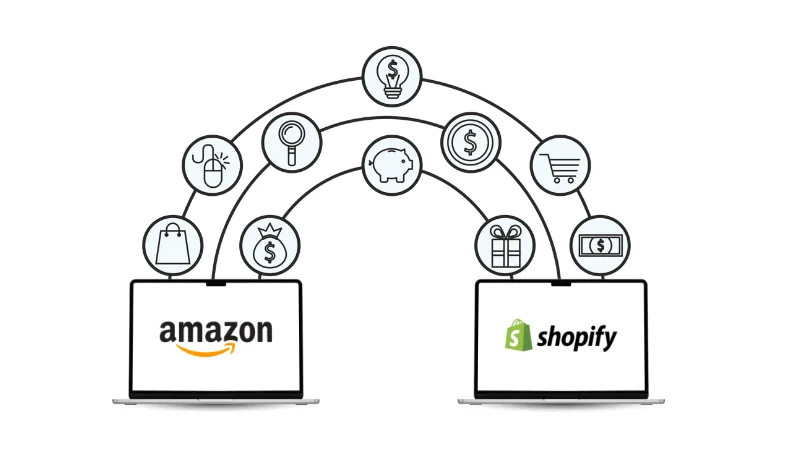
Advantages of Merging Amazon & Shopify with QuickBooks Online
1. Streamlined Bookkeeping
No need for manual data entry. Sales, chargebacks, refunds, and taxes will all sync automatically.
2. Reports That You Can Rely On
Keep track of your profits, losses, balances, and cash flow at any moment and across any channel.
3. Simplified Tax Compliance
Audit risk is minimized as sales tax, VAT, and marketplace facilitator taxes are all tracked correctly.
4. Faster Bank Reconciliation
Save hours every month by getting your marketplace payouts and QuickBooks deposits to sync up perfectly.
5. Scalable Operations
Automation will keep Bookkeeping bottlenecks from occurring as order volume grows.
Best Practices for Integration
- For summary journal entries rather than individual orders for stores with high volume.
- Reconcile Amazon and Shopify payouts on a weekly basis.
- Check mappings each time you introduce new products or new payment gateway options.
- Keep marketplace fees distinct from operational expenses.
- For cleaner reporting, maintain one income account per each sales channel.
Common Mistakes to Avoid
- High volume means syncing every single order
- Bookkeeping considers fees from Amazon and Shopify
- Tax mapping errors for sales that are multi-state or international
- Payouts that are unreconciled consistently
- Several apps that duplicate data
Conclusion
For eCommerce companies looking to achieve precise Bookkeeping, tax-ready financials, and growth that is scalable, integrating Amazon and Shopify with QuickBooks Online is a must. When combined with optimal integration tools and with proven practices, complete control over financial data can be achieved by removing manual work, lessening mistakes, and managing far more data.
Regardless of being a small seller or a large-volume seller, automation is the cornerstone of effortless accounting.
FAQs
- Can Amazon connect to QuickBooks Online?
No. Amazon requires a third-party integration tool for data sync with QuickBooks Online. - Does QuickBooks Online connect to Shopify?
Yes. Shopify has an inbuilt connector, but for fee and tax calculations, the third-party applications are more reliable. - Should I sync individual orders or summary entries?
For high-volume stores, summary journal entries are recommended to keep QuickBooks uncluttered and efficient. - Is this integration suitable for international sellers?
Yes. Most advanced connectors support multi-currency, VAT, and international marketplaces. - Do I need an accountant after integration?
Yes. Integration removes the need for manual data entry, but an accountant is necessary for accuracy, compliance, and financial strategy.